

Table of Contents
- Prioritize Simplicity
- Ensure Responsive Design
- Offer Multiple Views
- Use Intuitive Navigation
- Implement Color Coding
- Provide Clear Availability Indicators
- Incorporate Accessibility Features
- Test and Iterate
- Conclusion
Designing a calendar interface that is both intuitive and efficient is a critical aspect of modern application development. Users rely on calendars not only to track appointments and deadlines but also to organize their daily routines and plan for the long term. A well-designed interface can reduce cognitive load, minimize errors, and enhance overall user satisfaction, while a cluttered or confusing design can lead to frustration and decreased productivity. Understanding how people interact with calendars, whether on desktops, tablets, or mobile devices, is the first step in creating a user-friendly experience.
When focusing on mobile applications, particular attention must be paid to the constraints and opportunities of small screens. The mobile calendar UI should prioritize clarity, easy navigation, and quick access to key functions, such as adding or modifying events. Features such as gesture-based interactions, responsive layouts, and clear visual hierarchies can significantly improve usability. By thoughtfully integrating these design principles, developers can create calendar interfaces that meet user needs efficiently without overwhelming them.
Prioritize Simplicity
The foundation of a successful calendar interface lies in its simplicity. Overly complex visuals or an excess of features can overwhelm even advanced users. The best designs feature a clear, focused layout where the most critical actions, viewing, adding, or editing events, are front and center. By stripping away anything extraneous, the user is not distracted and can engage efficiently with the core functionality.
Simplicity also facilitates quicker onboarding for new users. When a calendar interface feels familiar and uncluttered, both first-time visitors and seasoned users can quickly understand its core functions. Consider using familiar metaphors, such as a desk calendar or planner, to help users make mental connections and improve interactions. Additionally, avoid jargon or overly technical language in action buttons; clear labels like “Add Event” or “Next Week” make interfaces more approachable and effective for all experience levels.
Ensure Responsive Design
Modern users often switch between desktops, tablets, and smartphones. A well-designed calendar must seamlessly adapt to these different environments. Responsive design principles ensure the interface looks good and works flawlessly on any device. Key interface elements, such as buttons and event markers, adjust to various screen sizes, providing an optimal experience at all times.
To further enhance responsiveness, incorporate adaptive layout techniques such as touch-friendly controls for mobile users, swipe navigation, and easy zooming for detailed views on smaller screens. Prioritize fast loading times and smooth transitions between views regardless of device. Testing the interface on real hardware is essential to uncover issues that simulators or emulators may not reveal. Ensuring responsive design not only improves usability, but also future-proofs the application against changing device trends.
Offer Multiple Views
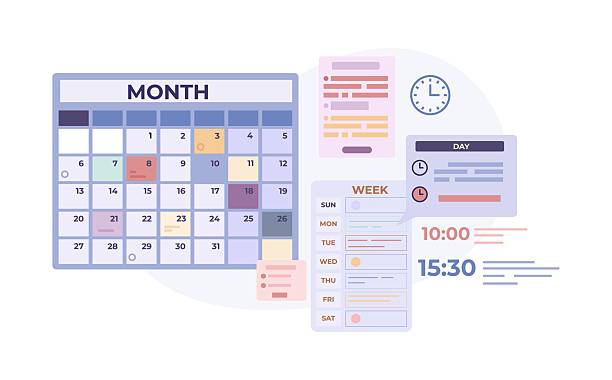
Users interact with calendars in various ways, so offering daily, weekly, and monthly views enables customization based on individual preferences and tasks. A daily view is ideal for scheduling single meetings, while a monthly overview helps in managing multiple projects. Advanced applications may also include agenda or list views for quick access to upcoming commitments. It is important to ensure that switching between these views is seamless and that users can maintain context. Additionally, personalization options, such as setting a default view or toggling calendar visibility, enhance usability and provide better control over scheduling.
Effortless navigation is essential for any user-friendly calendar. Controls such as arrow icons for moving between dates or months, clickable dates for event details, and consistent back/next buttons make it easy for users to navigate. Clear, recognizable patterns help reduce the learning curve and foster repeat engagement.
Navigation should also minimize the number of steps required for common tasks. Implement breadcrumbs or visual timelines to help users orient themselves, especially in complex or feature-rich interfaces. Intuitive keyboard shortcuts for power users and tips for beginners can further bridge the gap between ease of use and advanced features, ensuring that all user types are supported.
Implement Color Coding
Color is a powerful organizational tool when used thoughtfully in a calendar interface. Assigning colors to different event types, like meetings, deadlines, or personal tasks, allows users to scan their schedules quickly and accurately. Using consistent, recognizable color schemes aids visual comprehension and prevents confusion.
Remember to consider colorblind users by providing patterns or icon indicators alongside color codes. Allowing users to customize their color palette can also make the experience feel more personal and tailored to individual needs. Use color sparingly and avoid too many competing accents, as this can diminish the effectiveness of visual hierarchies within the interface.
Provide Clear Availability Indicators
A key feature of digital calendars is the ability to easily identify available and booked time slots using colors, icons, or patterns. These visual cues help prevent double-booking and enhance time management. Some calendars also use dashed outlines or lighter colors to indicate tentative events. Additionally, integrating with external scheduling tools improves clarity, particularly for teamwork or client collaboration. Thoughtful availability indicators transform a calendar into a dynamic scheduling assistant.
Incorporate Accessibility Features
Inclusive design ensures everyone can use your calendar, regardless of ability. Features like keyboard navigation, support for screen readers, and sufficient color contrast are essential. Designers should reference accessibility guidelines such as the W3C Web Content Accessibility Guidelines to meet diverse needs and promote equitable digital access.
Consider additional accommodations such as resizable text, alternate text for icons, and clear focus indicators for tab navigation. Always test with assistive technologies and, where possible, involve users with disabilities in the design and feedback process. Accessibility should be an ongoing effort, built into each design iteration rather than addressed as an afterthought.
Test and Iterate
Continuous refinement is essential for usability. Usability tests, feedback surveys, and analytics help identify areas where users may encounter difficulties. Regular reviews and user feedback ensure the calendar interface adapts to their evolving expectations. A/B testing of new features provides valuable insights, while involving a diverse group of users addresses their unique needs. Thoughtful design prioritizes user understanding and efficiency, ultimately enhancing both productivity and satisfaction for all users.
Conclusion
Designing a user-friendly calendar interface requires balancing simplicity, responsiveness, accessibility, and intuitive functionality. By prioritizing clear navigation, multiple views, effective color coding, and thoughtful availability indicators, designers can create calendars that reduce cognitive load and enhance productivity. Regular testing and iteration ensure the interface continues to meet user needs over time, resulting in a tool that supports seamless scheduling, collaboration, and daily planning for all users.
